%20(1).png?width=2582&height=423&name=pe_logo_blue_accessible_(1)%20(1).png)
Use the Survey Everywhere home page to create and organize surveys, find shared or deleted content, manage participants, and access account settings.
In this article:
- Navigate the Surveys home page
- Find your surveys, shared content, and trash
- Use Teams, Courses, and Participant Groups
- Access profile and organization settings
- Organize, sort, and search your content
Navigate the Surveys home page
Step 1. Sign in to Survey Everywhere. The Surveys page opens by default. The left navigation gives you access to Surveys, Teams, Courses, and Participant Groups.
From the action cards at the top of the page, you can Import existing content, create a New Survey, or go directly to Participant Groups.
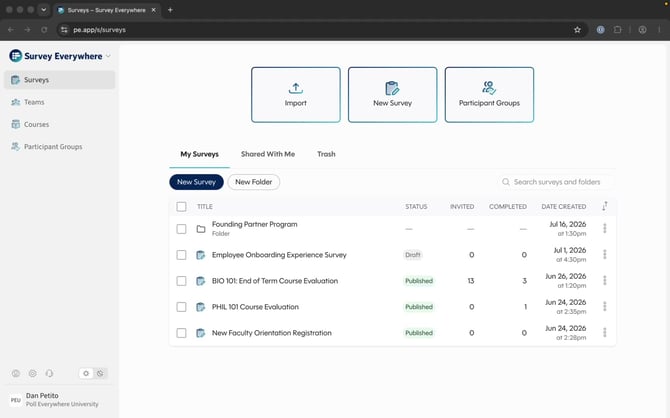
The Surveys home page contains shortcuts for creating content and navigating the web app.
Find your surveys, shared content, and trash
Step 2. Use the tabs above the content list to choose which surveys to view:
- My Surveys contains surveys and folders you created.
- Shared With Me contains content shared with you by another survey creator or administrator.
- Trash contains deleted content. Open this tab when you need to recover an item.
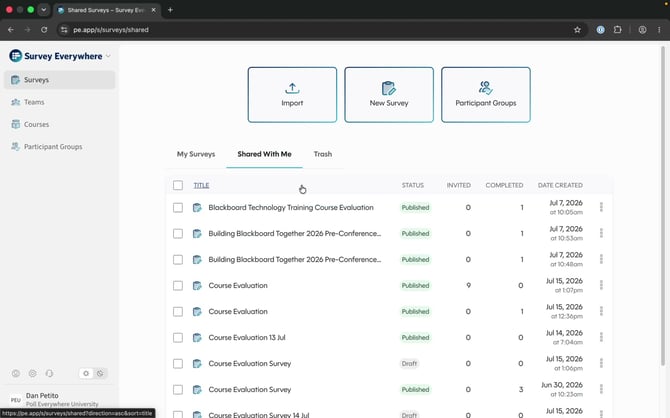
Select Shared With Me to view surveys another creator or administrator shared with you.
Use Teams, Courses, and Participant Groups
Step 3. Select an item in the left navigation based on what you want to manage:
Teams
Account administrators can use Teams to manage user groups for collaboration, content sharing, and survey organization.
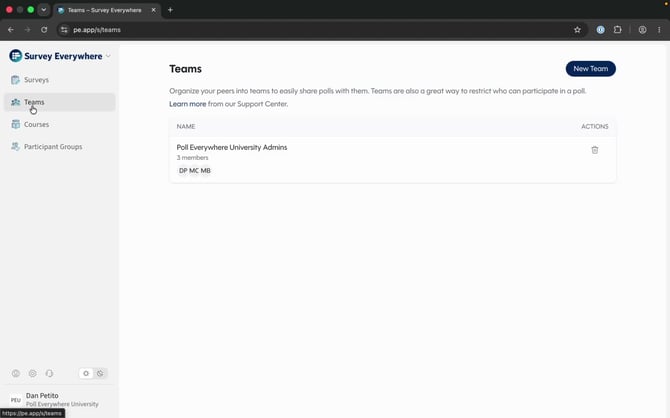
Teams is available to account administrators.
Courses
Use Courses to manage courses connected to Survey Everywhere through a learning management system such as Canvas, Blackboard, Brightspace, or Moodle.
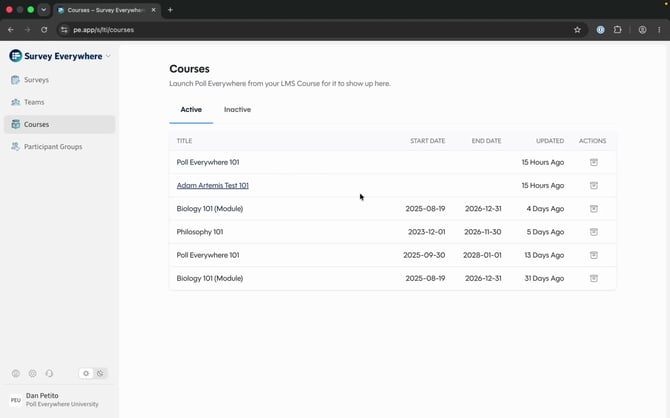
Connected learning management system courses appear under Courses.
Participant Groups
Use Participant Groups to create and manage groups independently of an LMS connection. This is useful for study participants, external participants, or anyone who is not enrolled as a student through your learning management system.
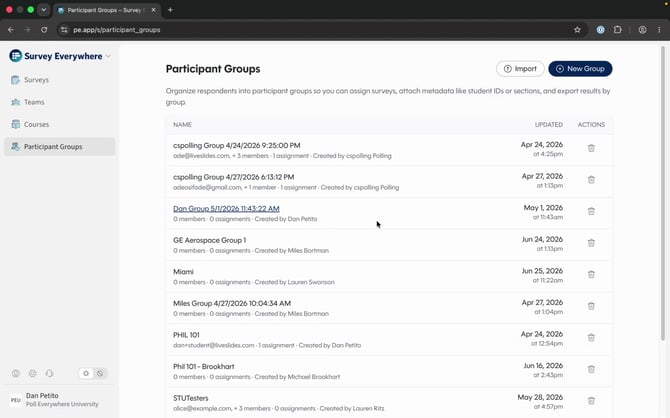 Participant Groups can include people who are not part of a connected LMS course.
Access profile and organization settings
Step 4. Use the icons next to your name at the bottom of the left navigation to open your profile settings, account settings, or help resources.
Note: Organization settings are visible only to account administrators.
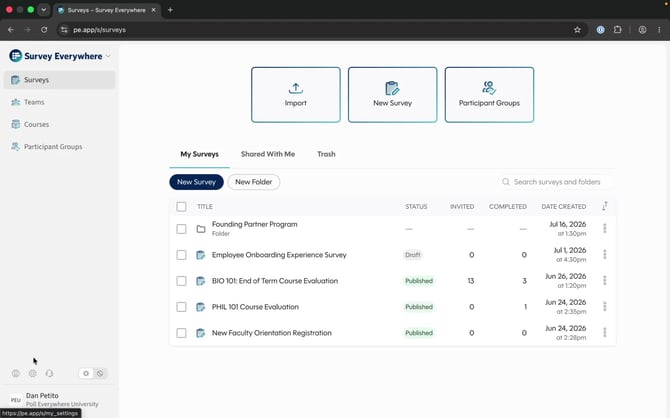 Profile and settings controls remain available at the bottom of the left navigation.
Organize, sort, and search your content
Step 5. On the My Surveys tab, select New Folder to organize related surveys. Select a folder name to open it and view its contents.
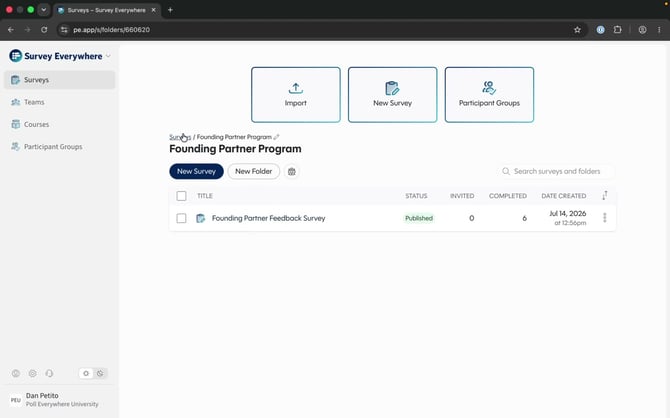
Open a folder to view and manage the surveys stored inside it.
Each survey row shows its Status, the number of participants Invited, the number of Completed responses, and the date created. Select a column heading to sort the list, or use Search surveys and folders to find content by name.
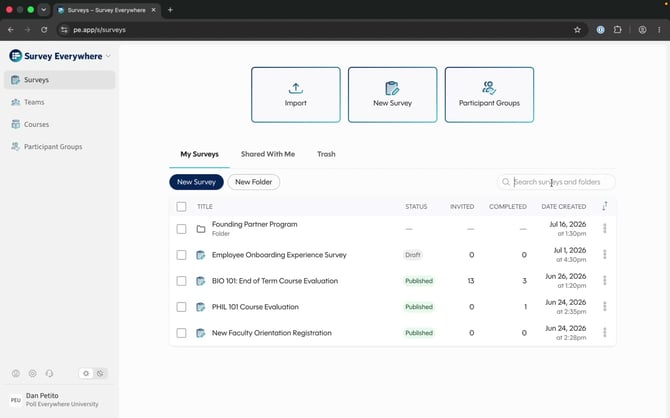 Sort by a column or search by name to find content quickly.
That’s it! You can now find and manage the main areas of your Survey Everywhere account from the home page.