
Use the Survey Everywhere builder to create content, manage survey behavior, preview participant experiences, distribute surveys, and review results.
In this article:- Use Build, Distribute, and Results
- Navigate pages and add content
- Rename, return home, and share
- Use the survey settings tools
- Visualize the survey and add logic
- Preview the participant experience
- Distribute, review results, and publish
The primary navigation at the top of a survey contains three work areas:
- Build creates pages, questions, content, and logic.
- Distribute creates response links and controls who can respond.
- Results tracks progress and provides response details and exports.
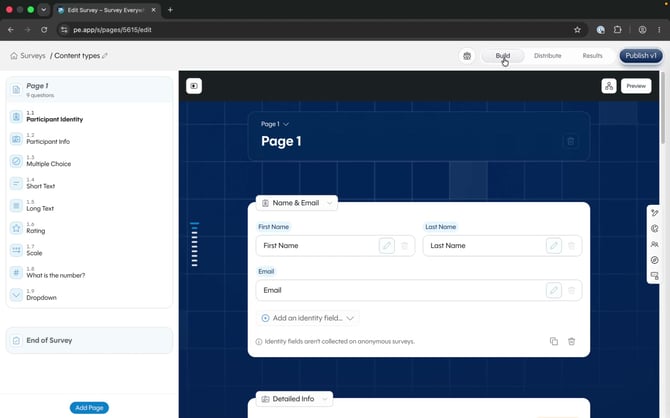
Switch between Build, Distribute, and Results from the top navigation.
The table of contents on the left lists every page and question in the survey. Select the table-of-contents button in the top-left toolbar to collapse or reopen this panel.
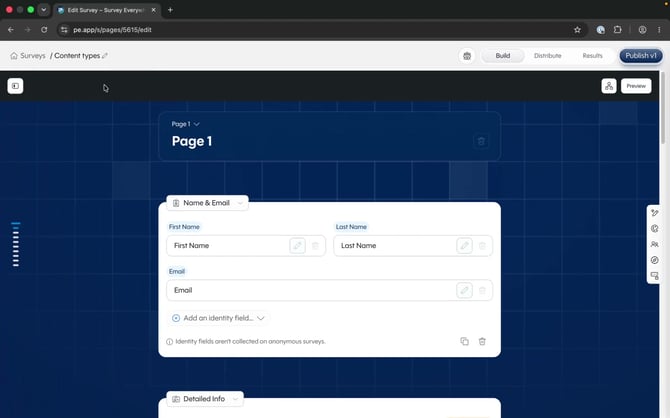 Collapse the table of contents when you need more room for the builder canvas.
Add a page by selecting the inline Add Page control after a page’s last question, or use the persistent Add Page button at the bottom of the table of contents.
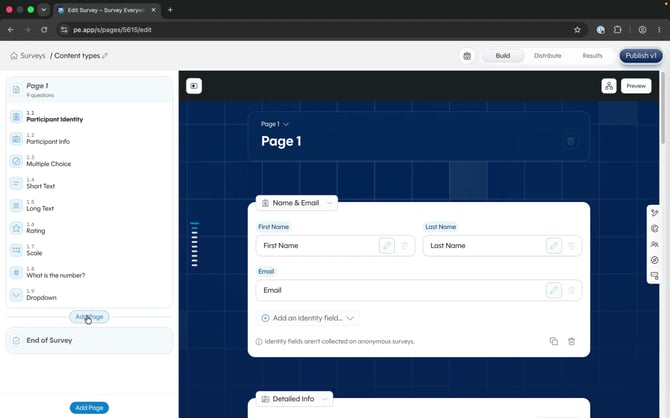 Add a page from its position in the table of contents or from the fixed button at the bottom.
A new page opens the content library. Choose the first participant field, question, content block, or logic block you want to add to the page.
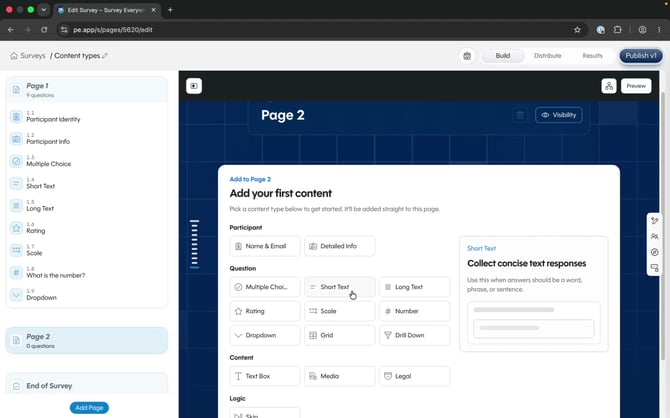 Select a block from the content library to begin building the new page.
Rename the survey or return home
Select the pencil beside the survey name to rename it. Select the home icon or Surveys in the breadcrumb to return to the Surveys home page.
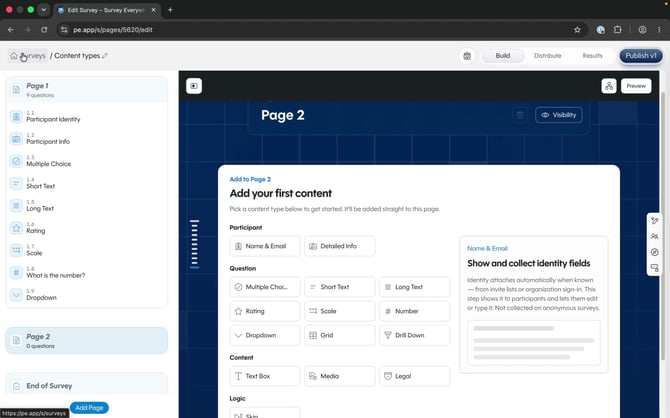 Use the breadcrumb to return home, or the pencil beside the name to rename the survey.
Share the survey
Select the people icon in the top navigation to open Collaborate. You can share with a user, team, course, or organization and assign the appropriate permission level.
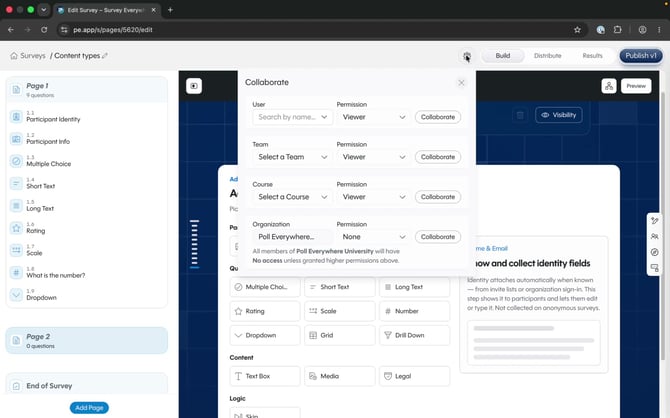 Choose who can collaborate and assign their access level.
The vertical toolbar beside the builder canvas opens tools for editing and controlling survey behavior.
Survey Assistant
Open Survey Assistant to describe changes in plain language. It can add pages or questions, apply logic, shorten the survey, and rewrite content. Select the arrow in its header to collapse the assistant.
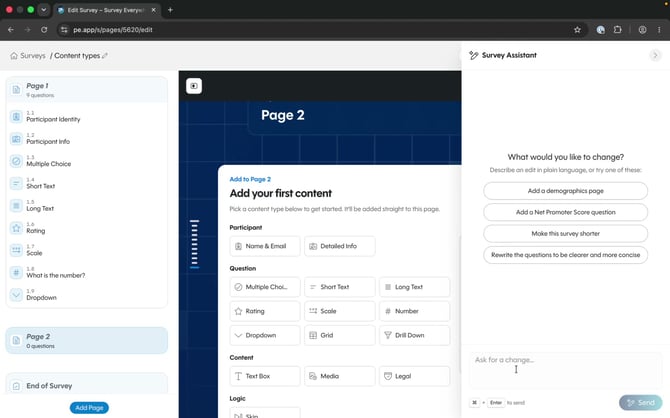 Enter a prompt or choose a suggested change in Survey Assistant.
Anonymous responses
Open Audience and enable Anonymous Responses when participant identity should be hidden in results.
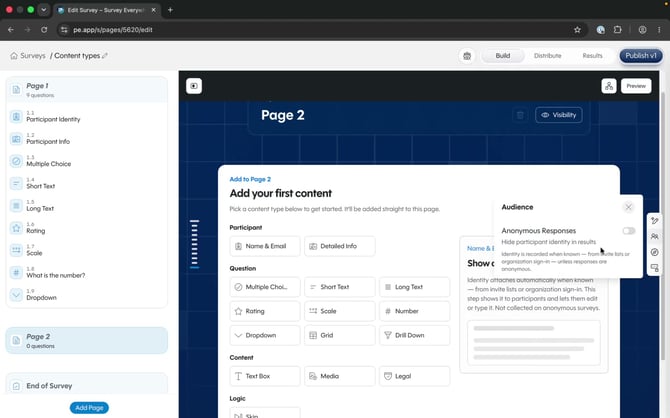 Anonymous Responses controls whether known participant identity appears in results.
Participant navigation
Open Navigation to configure the participant experience:
- Allow Going Back lets participants return to earlier pages.
- Allow Editing After Submit lets participants change answers after finishing.
- Review Before Finish lets participants review responses before completion.
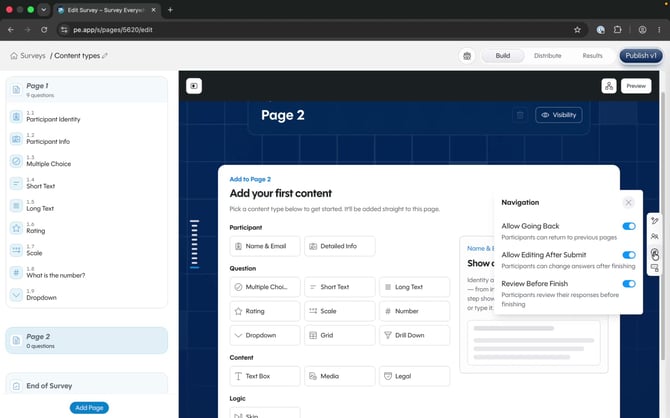 Use Navigation settings to control how participants move through and review the survey.
Access codes
Open Access Code to require a code before participants can view the survey. Leave the field blank to allow open access.
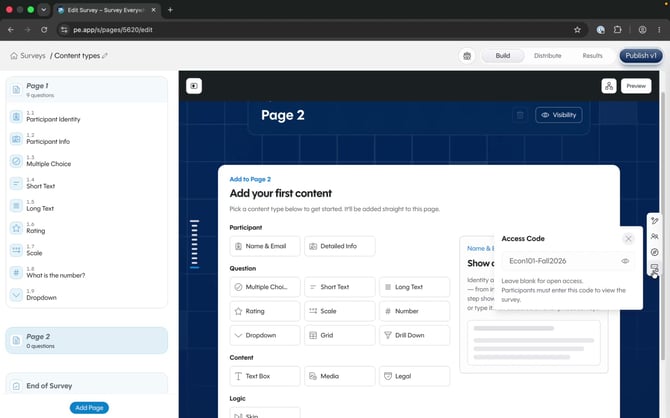 Participants must enter the configured access code before opening the survey.
Open Visualize to see pages, questions, and connections as a flowchart. This view helps you understand the survey’s possible pathways instead of reviewing one page at a time.
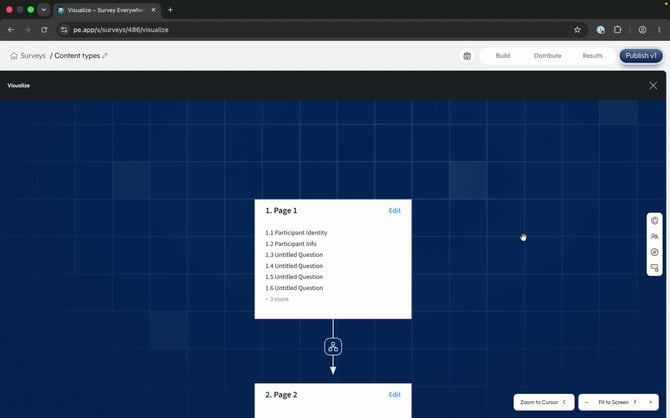 Visualize displays the structure and flow between survey pages.
Select the branching control on a connection to add branching logic after a page. Use the hand tool to move around the canvas, zoom in or out, zoom to the cursor, or fit the full survey to the screen.
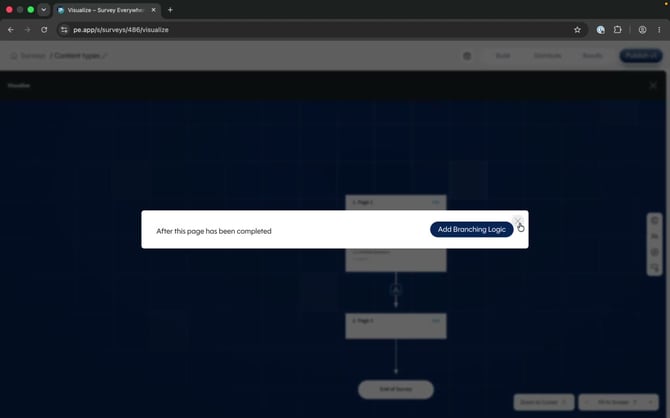 Add branching logic directly to a connection in the Visualize view.
Tip: Preview every branch before publishing to confirm participants reach the intended pages.
Preview the participant experienceSelect Preview to walk through the survey as a participant. You can enter responses, move between pages, and confirm whether each page displays one question or several questions as intended. Select reset to start the preview again, or select the X to return to the builder.
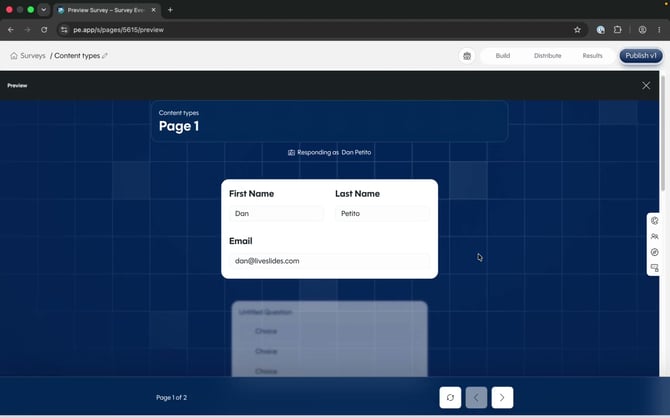 Preview the full participant experience before distributing the survey.
Distribute the survey
Open Distribute and choose how participants should access the survey:
- Public Link allows anyone with the link to respond without signing in.
- Invite Only sends each invited participant a personal response link.
- Login Required verifies identity through Survey Everywhere or a connected LMS.
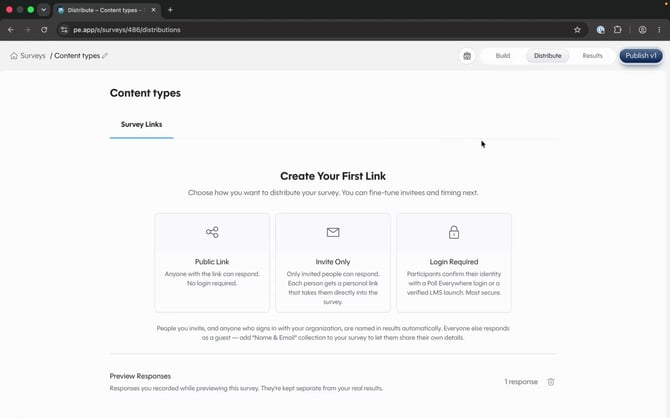 Choose a distribution method based on the access and identity requirements for the survey.
Review and export results
Open Results to review response and participant counts, completion rate, completion time, response activity, and question details. Sort or filter results as needed, and export data to formats such as CSV, SPSS, or R.
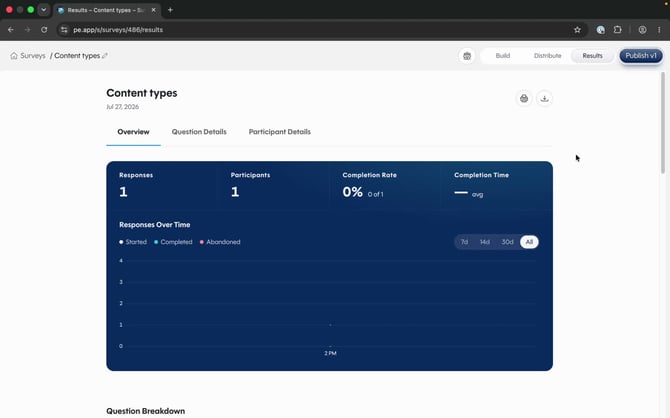 Results provides survey-level metrics and access to individual question details.
Publish changes
Select Publish in the top-right corner when the current survey version is ready for participants. Preview and test the survey before publishing.