
- Open the survey creation options
- Create a survey manually
- Import a survey from a file
- Create a survey with AI
- Optional actions after creation
From the Surveys home page, select New Survey. The tabs at the top of the New Survey window provide three alternative creation methods: Manual, Create with AI, and Import.
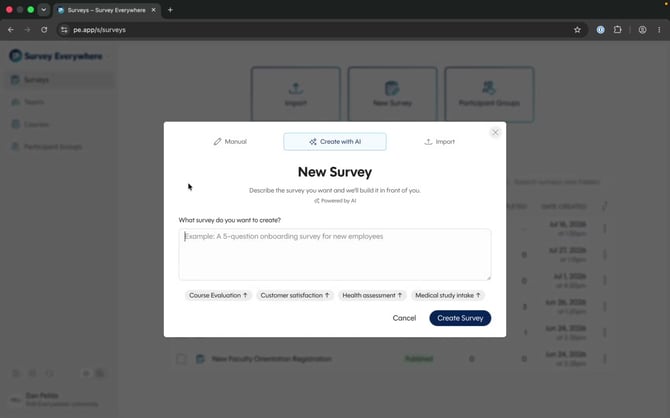 Use the tabs at the top of the New Survey window to choose a creation method.
Choose one method: Manual, Create with AI, and Import are alternatives. You do not need to complete all three.
Method: Create a survey manuallyChoose this method when you want to build the survey directly in the editor. Select Manual, enter a survey name, and then select Create Survey. Survey Everywhere opens the survey builder so you can add pages and content.
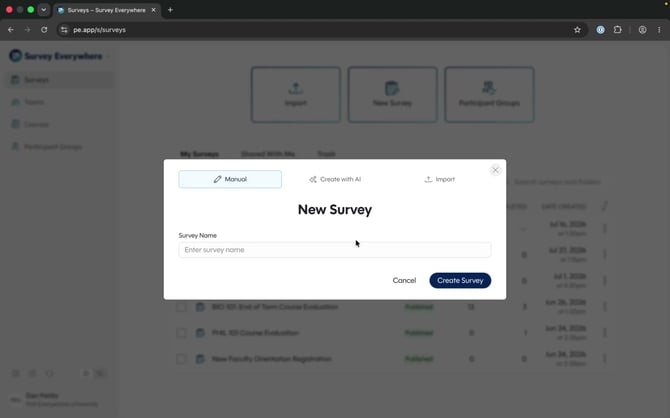
Enter a name before creating a survey manually.
Choose this method when you already have a survey file. Select Import, then drag a file into the upload area or select browse.
Survey Everywhere supports the following file types:
- Qualtrics export (
.qsf) - Microsoft Word
- Text
- Image
Wait for the green checkmark next to the file name, then select Import.
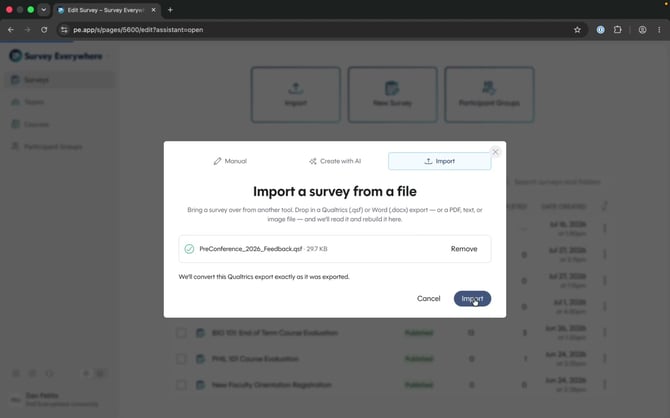 The green checkmark indicates that the file is ready to import.
After the import, the survey opens in the builder with the Survey Assistant. The assistant reports how many pages it created and keeps a history of completed actions. Enter another prompt if you want the assistant to revise the imported survey.
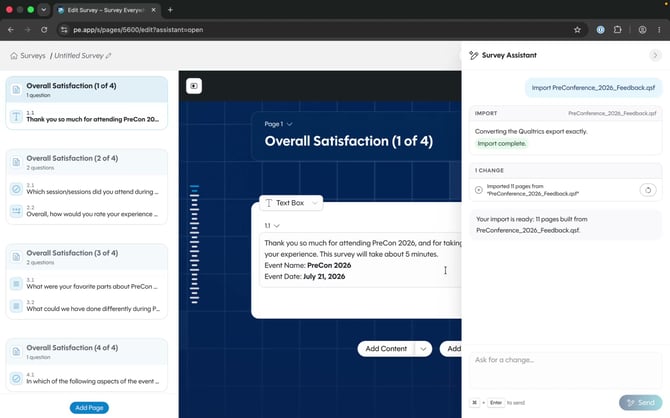
The Survey Assistant records the import result and can make follow-up changes.
Note: Review imported questions and logic before publishing. File conversion can require adjustments in the survey builder.
Method: Create a survey with AIChoose this method when you want Survey Everywhere to generate a starting draft. Select Create with AI. Describe the survey you want in the prompt field, or select a suggested starting point such as Course Evaluation, Customer satisfaction, Health assessment, or Medical study intake.
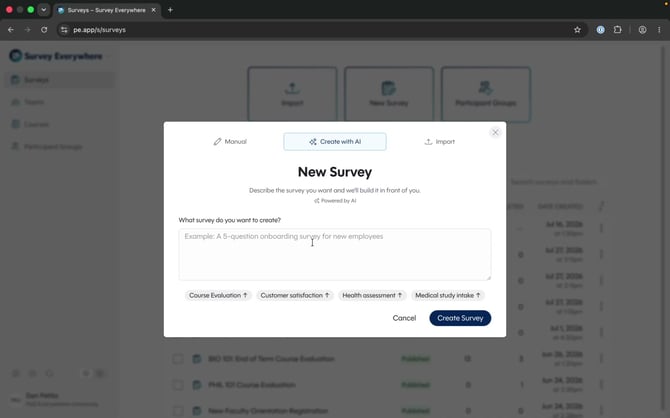
Describe the survey’s purpose, audience, and approximate number of questions.
Select Create Survey. Survey Everywhere builds the survey in the editor and displays its progress in the Survey Assistant. After generation finishes, review the pages and questions before publishing.
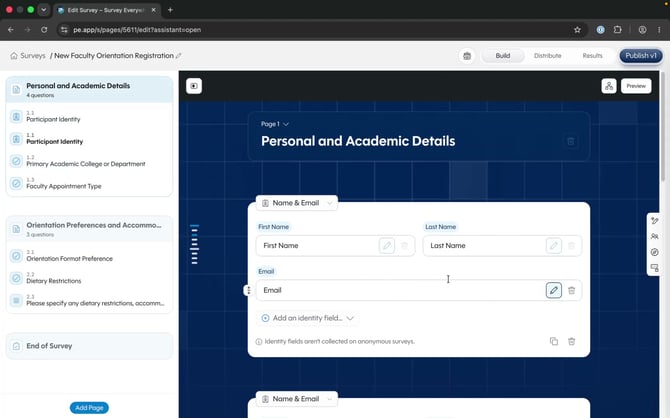 The generated survey appears in the builder, where you can review and edit every question.
Rename the survey
After using any creation method, you can change the survey name. Select the pencil next to its name, enter a new name, and select Rename.
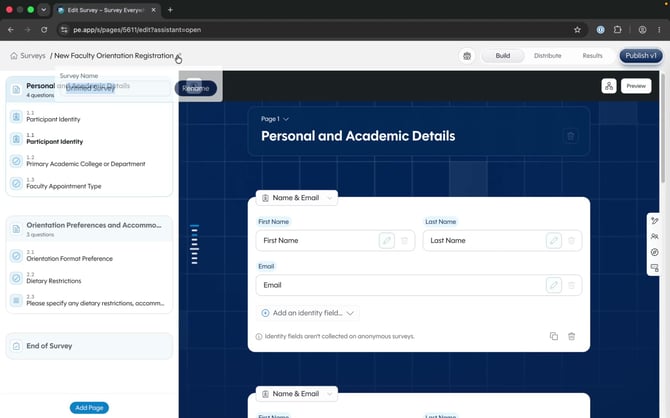 Select the pencil beside the survey name to open the rename controls.
Return to the Surveys home page
To return to the Surveys home page, select the home icon or Surveys in the breadcrumb at the top left.
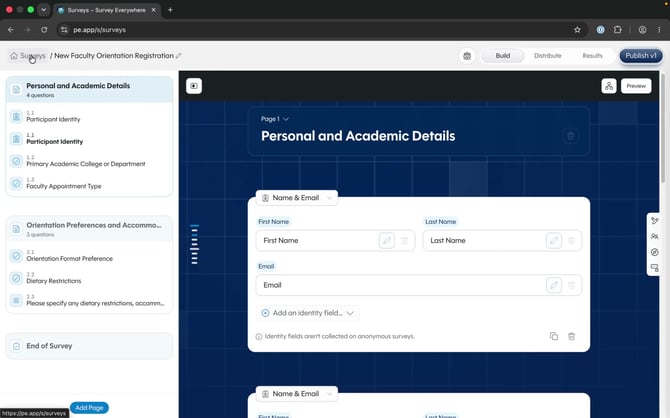 Select Surveys in the breadcrumb to return to the Surveys home page.