
Use the Distribute page to create survey links, control who can respond, schedule availability, and monitor responses.
In this article:- Open the Distribute page
- Step 1: Name the link and choose access
- Step 2: Select invitees
- Step 3: Set an optional time period
- Review and activate the link
- Manage active links
Open a survey and select Distribute. The Links section lists the survey’s existing distribution links, including each link’s status, availability, access type, audience, and response progress.
Select New Link to begin creating another distribution link.
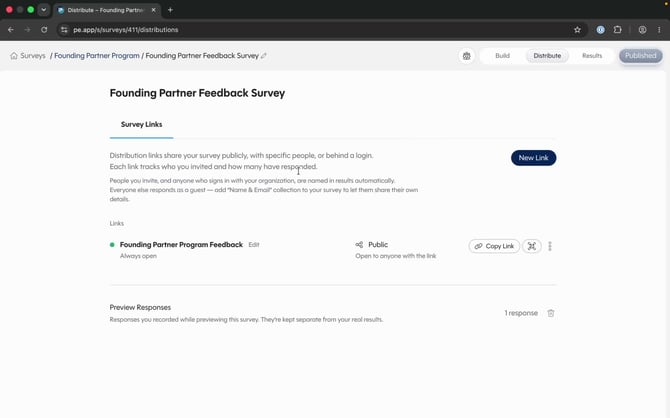
The Distribute page lists active links and provides controls for creating and sharing them.
Enter a descriptive Link Name, then choose one access type:
- Public Link allows anyone with the link to respond without signing in.
- Invite Only allows only invited people to respond and gives each person a unique link.
- Login Required confirms identity through Survey Everywhere or a verified LMS launch.
Choose one access type: Public Link, Invite Only, and Login Required are alternatives, not sequential steps.
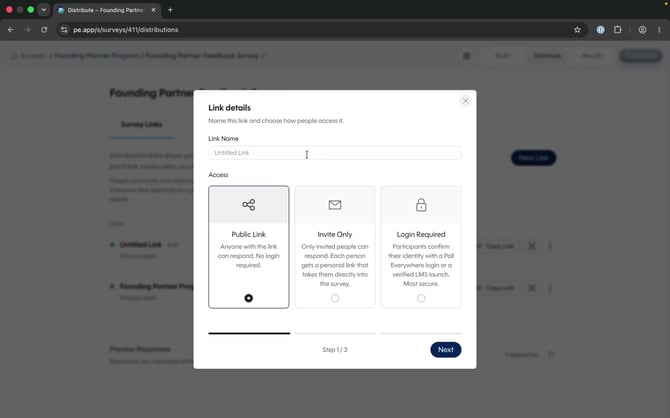 Name the link, choose one access type, and select Next.
Select the audiences and people who should receive or be associated with the link. You can choose:
- Your organization
- A connected course
- A team or user group
- A participant group for external participants
- Individual people found by name or email
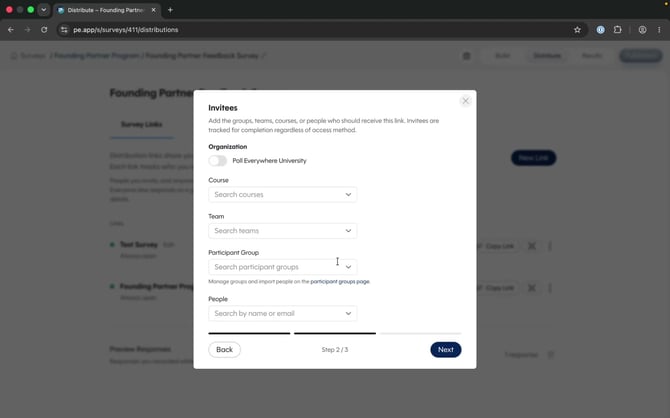 Select one or more audiences, then select Next.
Use the search fields to find existing courses, teams, participant groups, or people. Selected audiences appear beneath their search field and can be removed before continuing.
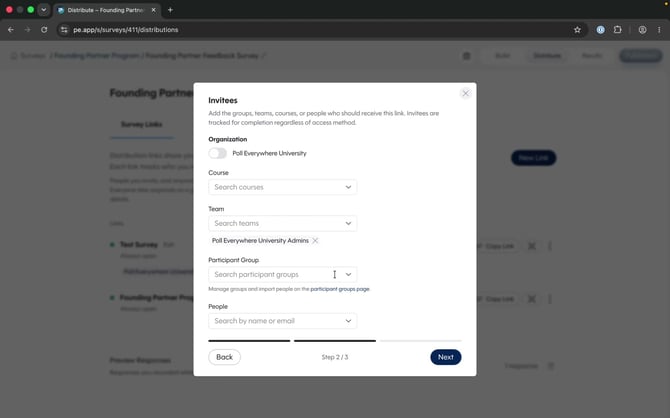 Selected teams, groups, courses, and people remain visible in the Invitees step.
Set Starts At and Ends At dates and times when the link should open and close. Confirm the time zone before continuing.
Optional: Leave the start and end fields blank to keep the link always open.
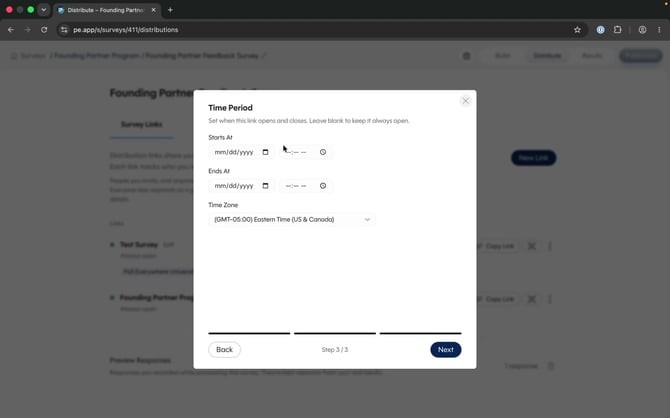 Add an availability window, or leave the fields blank for an always-open link.
Review the summary before activation. It shows the link name, access type, organization setting, courses, teams, participant groups, individual people, dates, and time zone.
Select Done when the settings are correct. Survey Everywhere activates the link and returns you to the Distribute page.
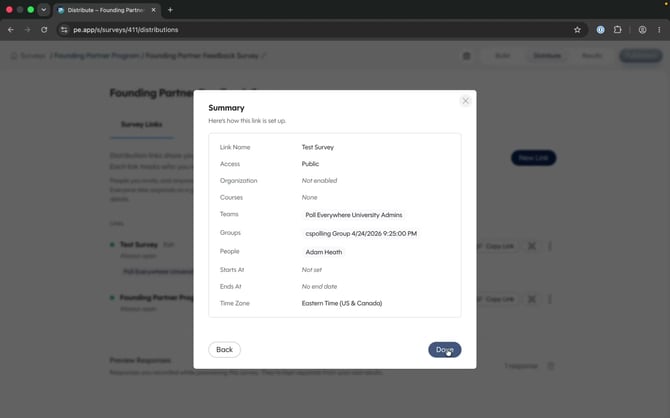 Confirm every setting in the summary before selecting Done.
Each active link card provides an at-a-glance summary:
- A green status indicator and availability period
- Audience chips for selected teams, groups, courses, or people
- The access type, such as Public
- The number of invited participants who responded
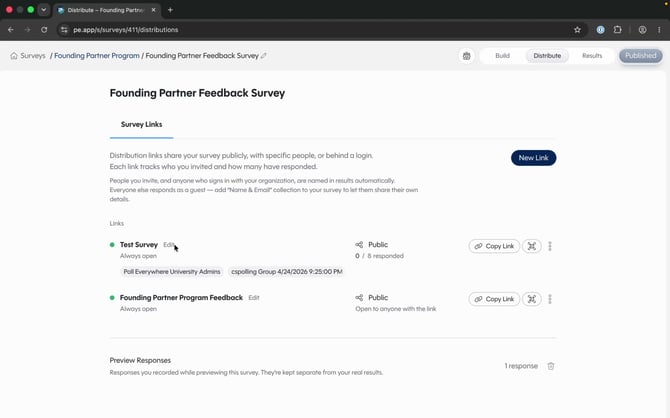 Active-link cards summarize the audience, access level, availability, and response progress.
Copy or share the link
Select Copy Link to copy the response URL. Select the QR code button to share the survey as a QR code. Use Edit or the more-actions menu to manage the link after activation.
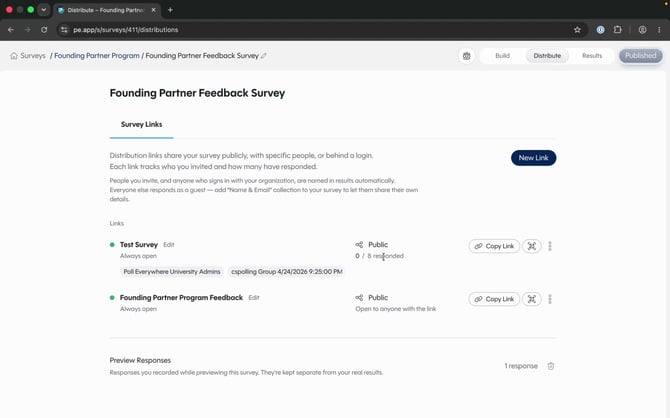 Copy the response URL or use the QR code button to share the survey.