
Discover the different question types and data-inputs available to insert into surveys.
In this article:- Open the content library
- Collect participant information
- Use choice and text questions
- Use rating, scale, and number questions
- Use dropdown questions and visibility
- Use grid questions
- Use drill-down questions
- Format content and apply logic
Select Add to Page in the survey builder to open the content library. Available blocks are organized into four categories:
- Participant for identity and participant metadata
- Question for response collection
- Content for text, media, and legal information
- Logic for controlling the participant’s path through the survey
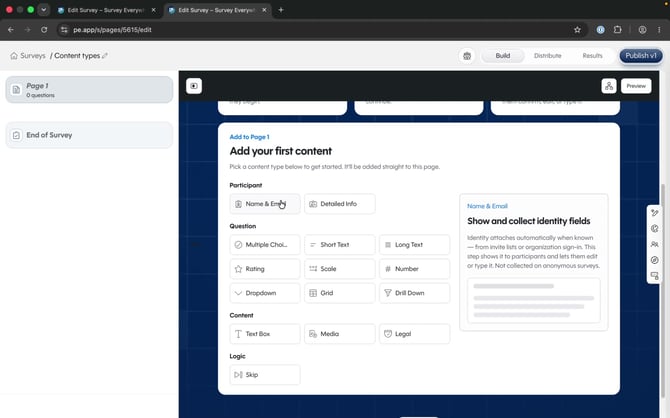 The Add to Page menu groups available blocks by purpose.
Name & Email
Add Name & Email to associate a participant’s identity with their response. Select the pencil beside a field to control whether Survey Everywhere fills it automatically or allows the participant to enter it.
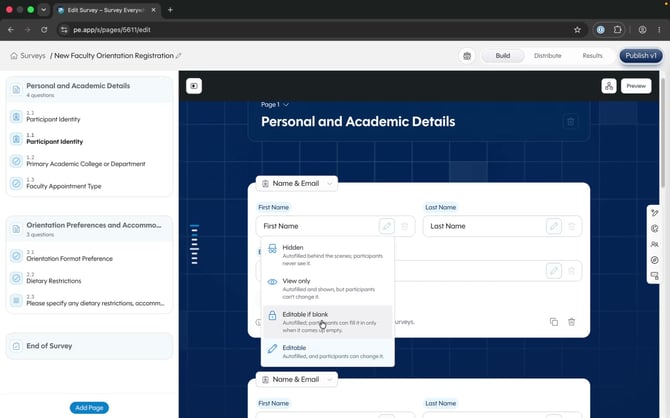 Editable if blank uses an available value and asks the participant only when that value is missing.
Detailed Info
Add Detailed Info to store participant metadata in reporting. Choose a source such as Course Title, a Participant group column, or Manual input.
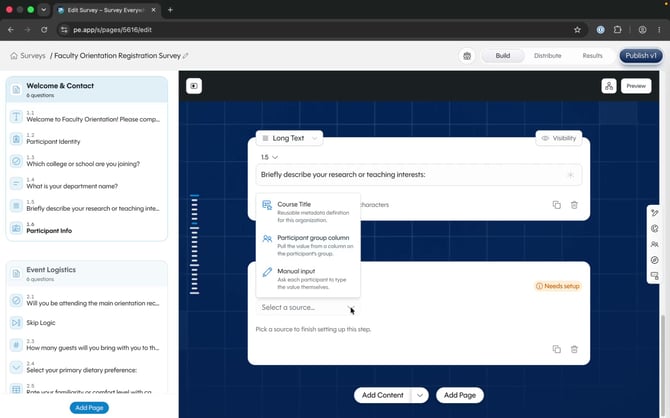 Select the source that should supply the participant detail.
Multiple Choice
Multiple Choice questions use Single Select by default. Open the selection menu to enable multiple selections. You can randomize participant choices, drag choices into a new order, control the visibility of individual choices, and use the asterisk to make the question required.
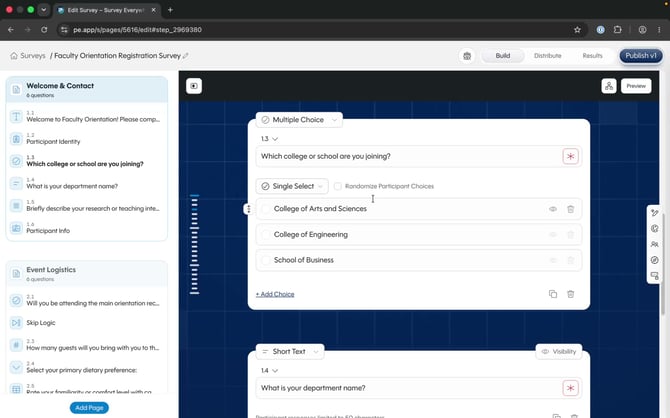 Configure selection behavior and response choices directly in the question card.
Note: Questions are optional by default. Select the asterisk on a question to make it required.
Short Text and Long Text
Use Short Text for brief answers, clarification, or follow-up details. Responses can contain up to 50 characters. Use Long Text when participants need more room to explain or provide feedback; responses can contain up to 500 characters.
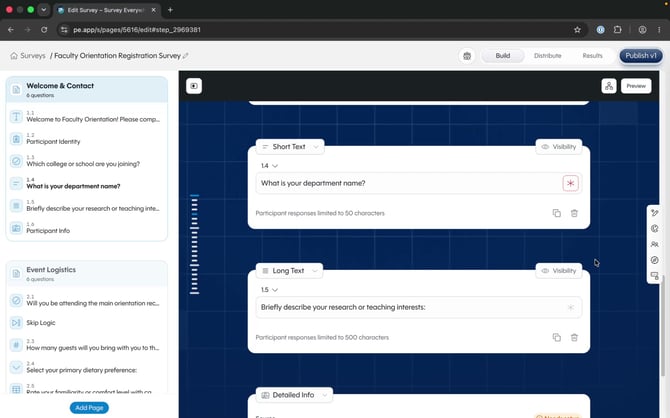
Short Text is designed for concise responses of up to 50 characters.
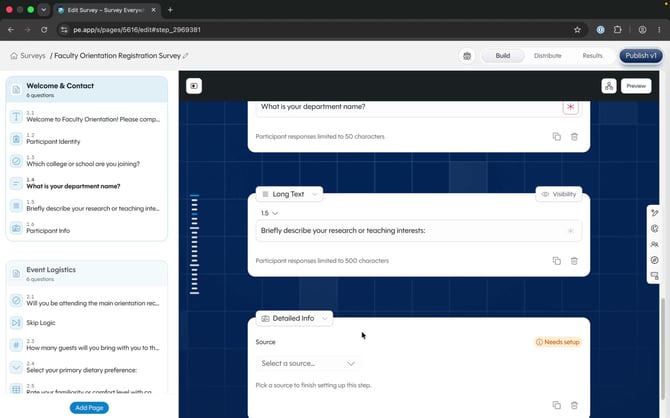 Long Text gives participants up to 500 characters for a response.
Rating
Use Rating to collect general feedback with stars. Open the Rate out of menu to set the maximum rating, up to 10.
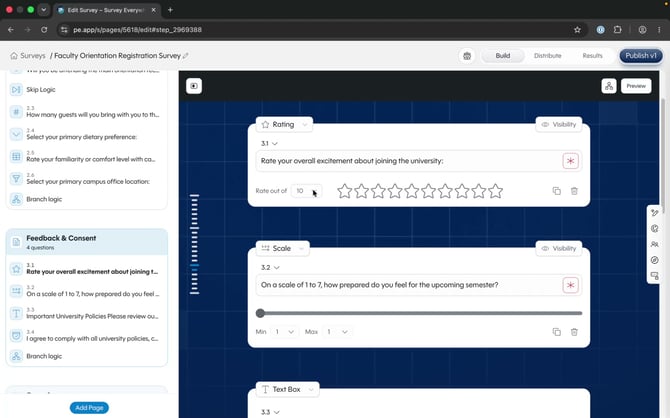 Set the highest rating participants can choose.
Scale
Use Scale to collect a numeric rating. Set minimum and maximum values that match the scale described in the question.
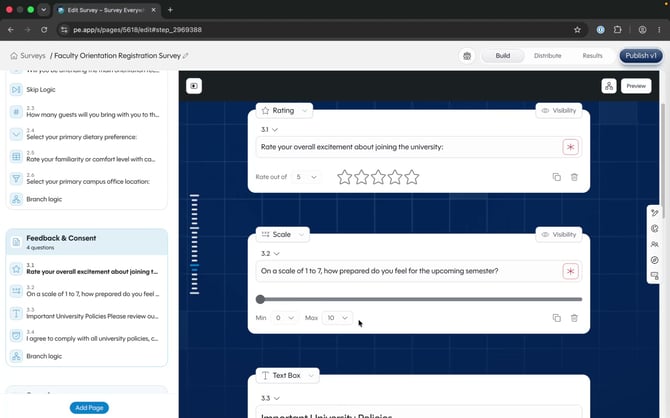 Use the Min and Max menus to define the numeric response range.
Number
Use Number when a response must be numeric, such as a guest count. Participants enter or adjust a number rather than free-form text.
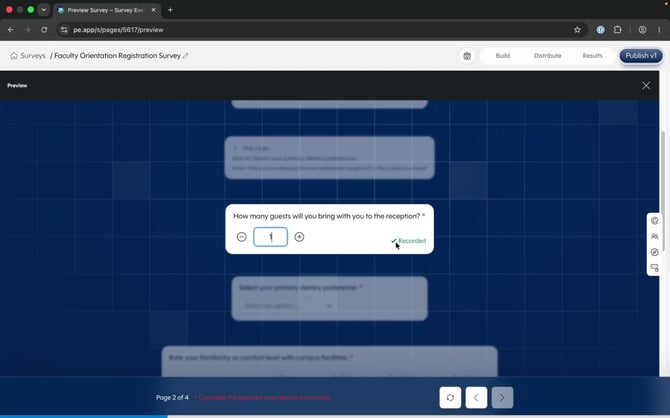 Number questions accept numeric responses in the participant view.
Use Dropdown when participants need to choose from a longer list while keeping the survey compact. Drag choices to reorder them, randomize their order, and select the eye beside a choice to control its visibility.
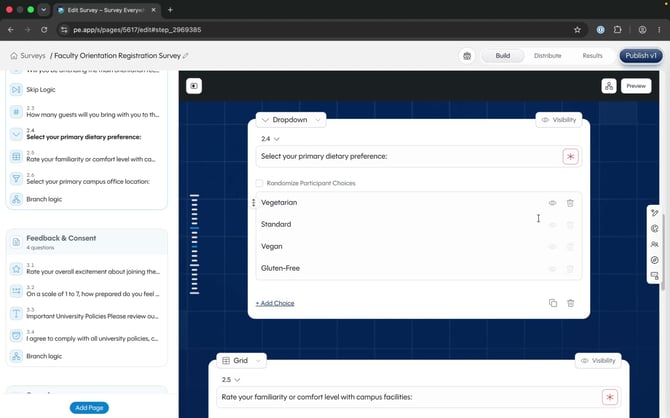 Visibility controls let you show or hide individual dropdown choices.
Use Grid to collect several related ratings in one compact question. Rows contain the items being rated and columns contain the available response choices.
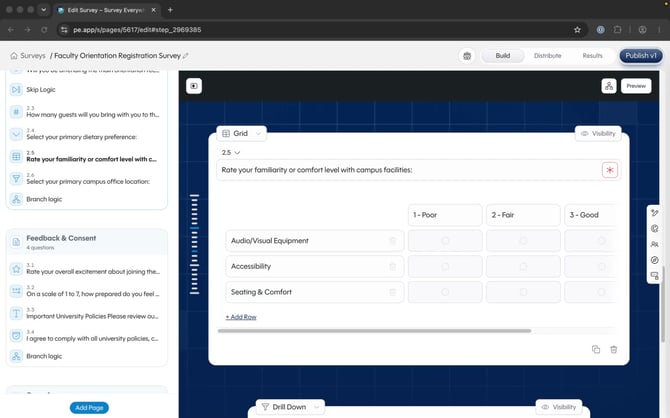 Grid questions combine related prompts into a response matrix.
- Drag rows or columns to reorder them.
- Select a trash icon beside a row or column to delete it.
- Select a plus above a column to add a choice on its left or right.
- Select Add Row to add another item.
- Use the horizontal scrollbar when the grid contains more columns than the card can display.
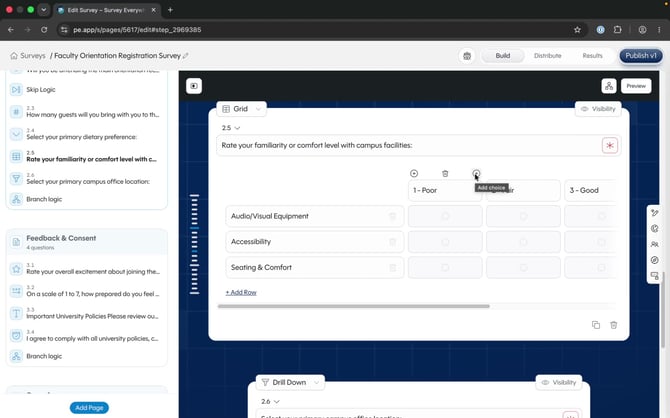 Use a plus above the grid to add another response column.
Drill-down questions use a spreadsheet to create dependent choices. Participants choose one value at each level, and each choice determines the options available in the next menu. For example, a survey can guide someone from Campus to Building to Room.
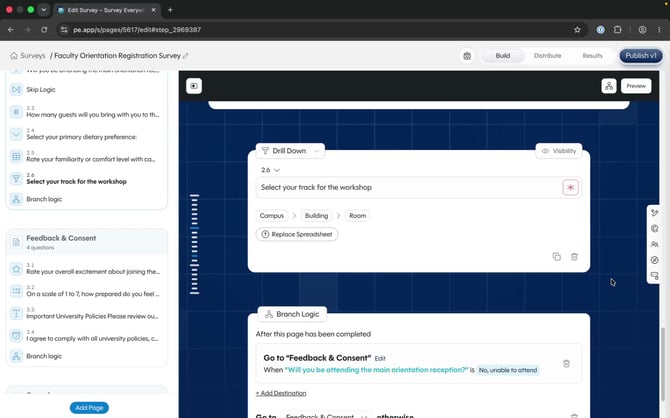 The spreadsheet defines the hierarchy and valid combinations.
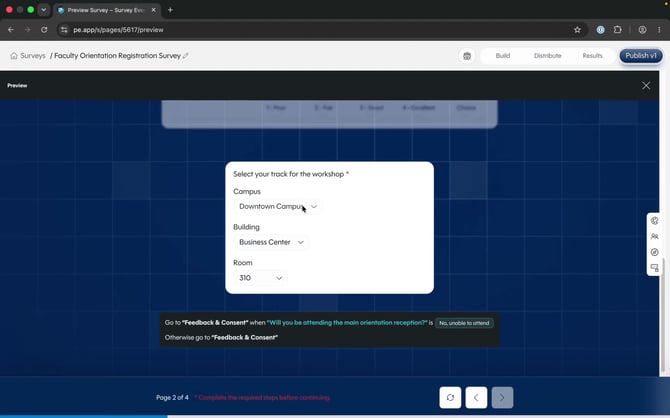 Each participant selection narrows the choices available at the next level.
Select editable text in a question or content block to open formatting controls. The toolbar supports mentions, images, bold, italic, underline, text styles, links, undo, and redo.
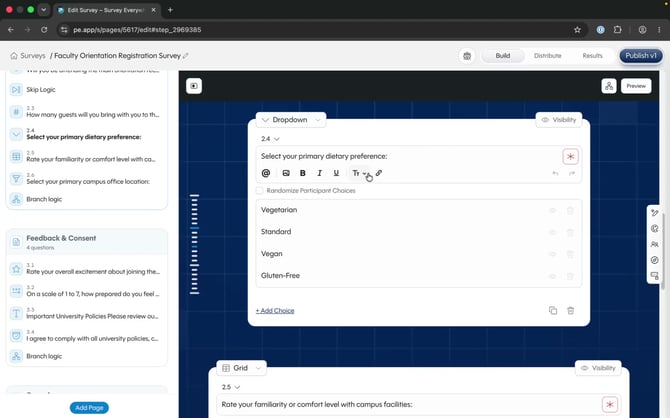 Use the inline toolbar to format text and insert supporting content.
Use Visibility within a question to control when the question or an individual choice appears. Add Skip or branching logic from the Logic category when the participant’s answer should change what they see next.
Tip: Preview and test every logic path before publishing, including paths created by hidden response choices.